Tests
Image resolution vs PDF size: four controlled tests
Short version
Source resolution dominates PDF size when images are involved. In our four tests, 3200×2400 produced a 1,111 KB PDF while 800×600 produced 71 KB — about a 94% reduction. But the right resolution depends on where the document will be viewed or printed.
A PDF with images can become surprisingly large even when the layout is simple. The usual reason is not the document structure. It is the number of pixels inside the embedded images.
We tested this with four synthetic photo-like images at different resolutions, each exported into a single-image PDF. The files were generated locally; no user documents were used and nothing was uploaded.
The numbers
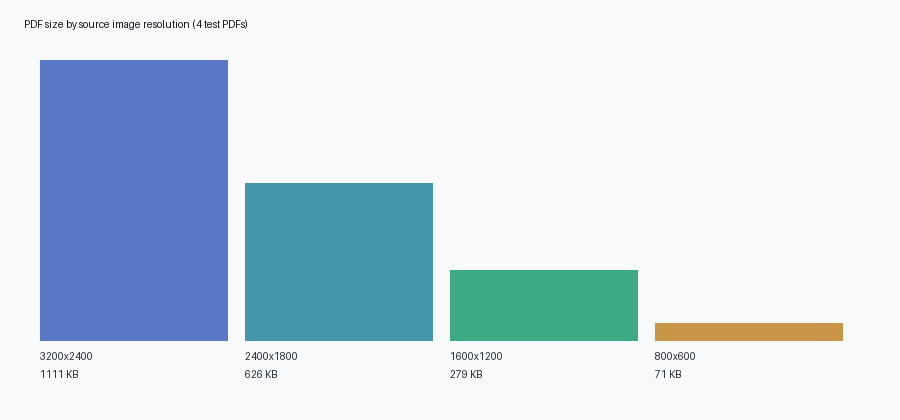
| Source resolution | PDF output |
|---|---|
| 3200×2400 | 1,111 KB |
| 2400×1800 | 626 KB |
| 1600×1200 | 279 KB |
| 800×600 | 71 KB |
That is a reduction of roughly 94% between the largest and smallest output. The document did not need a complicated layout or dozens of pages. Image dimensions alone made the difference.
Why the relationship is not perfectly linear
A 3200×2400 image contains about 7.68 million pixels. An 800×600 image contains 480,000 — sixteen times fewer. You might expect a sixteen-fold size reduction, but the PDF result only fell from 1,111 KB to 71 KB, a factor of about fifteen. Encoding, image content and PDF structure all influence the final byte count.
The useful lesson is directional: halving the longest side tends to cut the image payload substantially, not marginally.
Smaller is not automatically better
A document that looks sharp on a laptop can turn blurry in print. Scanned text is especially sensitive: reduce resolution too far and small characters become hard to read. Charts with fine lines lose detail before photographs do.
For documents mainly viewed on screen, 1200–1600 pixels on the longest side is a reasonable starting point for many ordinary images. For print, use a higher-resolution source where the image occupies a large area. The destination decides the number, not the other way round.
A practical workflow
- Decide where the PDF will be read: screen, email attachment, or print.
- Check the dimensions of the source images before inserting them.
- Resize oversized photos to their actual display requirements with the image resizer.
- Export with Images to PDF and inspect at normal viewing size.
- Only if the file is still too large, run Compress PDF and keep the original for comparison.
For the broader diagnosis — fonts, duplicate images, print-to-PDF rasterisation — see why PDFs stay large after compression.
What this test does not cover
These are single-image PDFs. A 40-page report with text, fonts and mixed images will not shrink by the same percentage. We publish the method so you can judge how much of it transfers to your file. If a claim about file size has no method behind it, treat it as marketing.
Frequently asked questions
Are these numbers universal?
No. They are single-image PDFs built from synthetic photo-like content with local encoding. Text, fonts, image content, encoder settings and page structure all change the result.
Is 1600×1200 always enough?
For screen viewing of ordinary images, often yes. For print, or for images that fill a large page, higher resolution may be needed.
Does resizing destroy quality?
It discards pixels. Whether that matters depends on the output size and viewing distance. Compare the exported PDF at normal viewing size before deciding.